

Integrations
OMN EAI: Import and export product data
Bring data from your ERP, supplier files and other systems into OMN and send it out again in a structured way – with profiles your team maintains itself.
EAI stands for Enterprise Application Integration. In OMN, EAI is the component for data exchange: import profiles bring product data from CSV and Excel files into PIM, and export profiles provide it for shops, marketplaces and partners. For automated connections to other systems, EAI uses its own XML format and transfer methods such as FTP and hot folders.
Import
Map once, reuse for every file
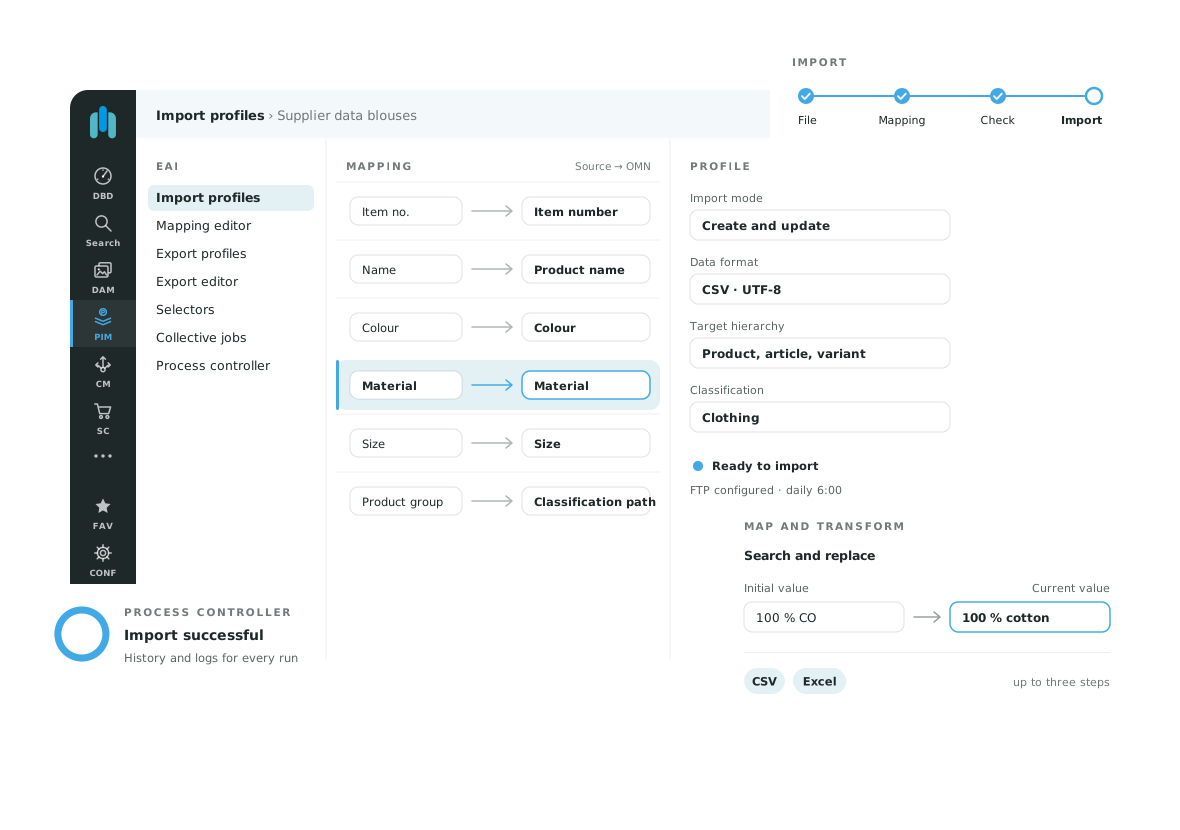
An import profile describes how a file arrives in OMN. You define the mapping once using a sample file. Every further file with the same structure then runs through the same profile.
01
Create an import profile
Decide whether to create new products, update existing ones, or both. Choose the file format, character encoding and level: product, article or variant.
02
Map the fields
In the mapping editor, you assign the columns of your file to OMN attributes while seeing the real values. Key attribute and classification path mapping make sure each row lands on the right product and in the right category.
03
Transform values
If a value does not fit, transform it during import in up to three steps: add, pad or delete characters, search and replace, or calculate. “100 % CO” becomes “100 % cotton”.
04
Run or schedule
Start the import right away or schedule it. Files can be provided on an FTP server. A status indicator shows you beforehand whether the profile is complete.
Export
The right extract for every recipient
A shop needs different information than a retailer or an agency. That is why EAI separates which attributes are exported from which products are included.
Export profile
Defines the classification and format: OMN CSV or OMN XML, complete or with selected attributes, or XLS. In the export editor, you choose attributes, set your own column names and transform values.
Selector
Narrows down the products, articles and variants for an export. Without restrictions, a selector exports all variants of the chosen classification.
Collective job
Combines a selector and an export profile and creates the export file. This lets you reuse the same building blocks for different recipients.
With OMN 7, you set up exports entirely in the user interface. Files in the OMN formats can be imported again after editing, as long as their structure stays the same.
Traceable
Every run with history and logs
The process controller shows all imports and exports with their history. The logs help you find errors faster.
Export files stored in OMN can be downloaded again there. From an export profile, you can jump straight to the related runs.
System integration
Connected to your systems automatically
For regular transfers, we set up EAI with you as part of the project. It is based on OMN XML, an exchange format for products, classifications, attribute definitions, assets with metadata, and projects and templates from Channel Management.
Files arrive via an FTP server – provided by apollon or your own – or via a hot folder. OMN processes them in the background, either as a full data set or as changes only. Together, we define beforehand which system owns which data.
Overview
EAI, REST API or connector?
OMN offers several ways to exchange data. The right one depends on the task.
| Task | Suitable approach |
|---|---|
| Regularly take over files from your ERP or suppliers | OMN EAI: import profile, FTP or hot folder |
| Create exports for partners, retailers or marketplaces | OMN EAI: export profile and collective job |
| Your own applications access product data and media directly | OMN REST API |
| Publish products, variants and images to a Shopify store | Shopify connector, “apollon OMN” app in the Shopify App Store |
| Connect a Shopware store | OMN and Shopware |
| Link workflows without programming | n8n and Zapier |
| Use media in Adobe and Office applications | CI HUB Connector |
Typical uses
What teams use EAI for
Take over ERP master data
Item numbers and master data come from the ERP; your team adds texts, attributes and images in OMN. Define beforehand which fields the ERP owns so that an import does not overwrite enriched content.
Read in supplier data
Every supplier sends its spreadsheet differently. With a separate import profile per supplier, you map the columns once and reuse the mapping for every new file.
Supply channels and partners
Export profiles and selectors give each recipient exactly the products and attributes they need – from a retailer catalogue to a marketplace.
Edit data in a spreadsheet
Export a product group in OMN format, have values added in the spreadsheet and import the file again.
Questions and answers
Frequently asked questions about OMN EAI
What is EAI?
EAI stands for Enterprise Application Integration, connecting different business applications. In OMN, EAI is the component that imports and exports data – via file, FTP or hot folder.
Which formats does EAI support?
Imports in the user interface: CSV and Excel. Exports: OMN CSV, OMN XML and XLS. For automated connections, EAI uses the OMN XML exchange format.
Do I need developers?
Not for import and export profiles: your team sets up mappings, transformations and exports in the user interface. We configure automated connections via FTP or hot folder with you as part of the project.
EAI or REST API?
EAI exchanges data as files, once or on a regular basis. The REST API is intended for applications that access OMN directly and programmatically.
Is EAI included in OMN Accelerator?
Yes. In OMN Accelerator, too, you import and export data with EAI.
See EAI in a demo
We show you import and export in OMN and discuss how OMN works with your systems.